

Skip to content

Demo

Try the Online Demonstration

A laptop and stethoscope on a white desk

In short

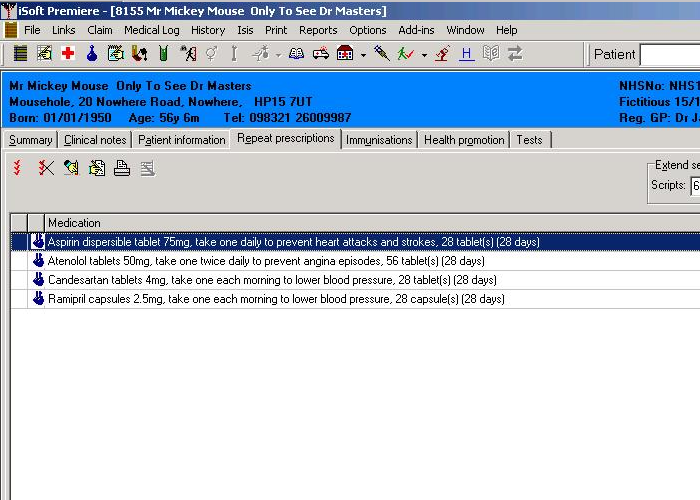
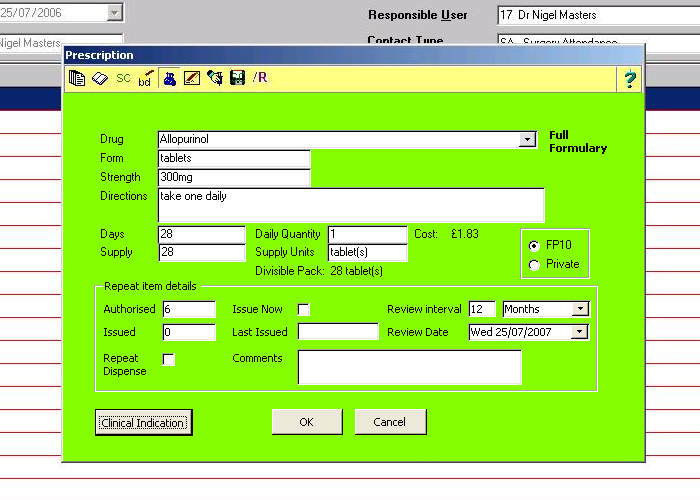
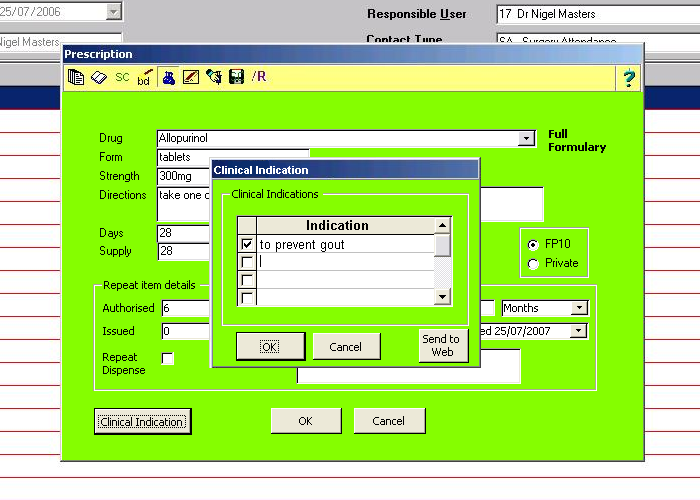
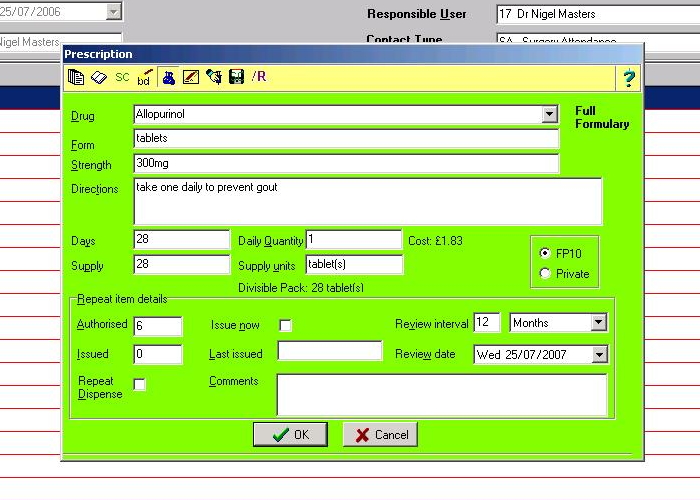
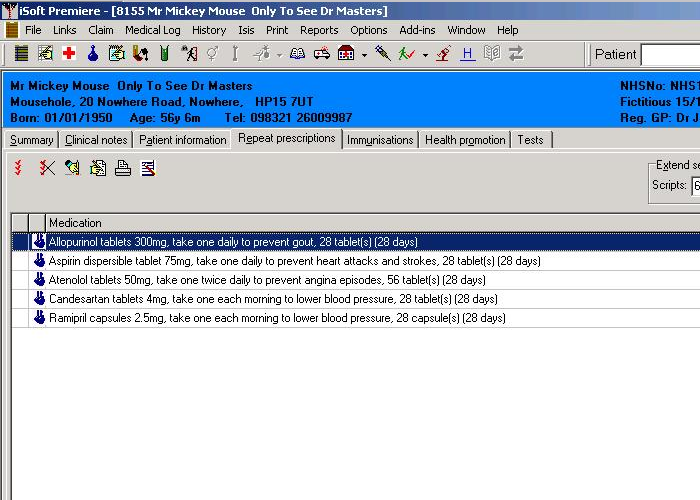
The demonstration shows a prescriber adding a clinical indication in iSoft Premiere, a GP prescribing system, in July 2006. They click the Clinical Indication button, tick “to prevent gout” for allopurinol, and the indication is added to the directions, so the label says what the medicine is for.

The screenshots below were taken in July 2006 in iSoft Premiere, a GP prescribing system, set up for clinical indications. They follow one new prescription, for a test patient, from start to finish.

Questions

iSoft Premiere, a GP prescribing system, set up for clinical indications. The screenshots were taken in July 2006. The same system counted the tablets in the statin compliance study.

They click the Clinical Indication button, a list of indications appears, and they tick the one that applies, such as “to prevent gout” for allopurinol. The Sample Directory lists the phrases for common medicines.

The indication is added to the directions, for example “take one daily to prevent gout”, so the label says what the medicine is for.

There is no separate indication field. Clinicians add the indication as free text to the directions, and in EMIS the free text is stored and offered from a pick list on future issues, as Dr Masters explains in FAQ 3.

Next step

Find the wording for the medicines you prescribe.

The Sample Directory gives the phrase for each commonly prescribed medicine, ready to add to the directions.

Last reviewed

Dr Nigel Masters with a patient at Highfield Surgery

Get in touch

Have a Question About
Clinical Indications?

If you have a question that is not adequately answered elsewhere on the site please contact us and we will do our best to answer it.